Setting up CrossEx & API Key
1. Enable CrossEx
Sign up on gate.com if you don't already have an account, then switch on the CrossEx feature at gate.com/crossex. This needs to be enabled before the API key permission below is available, and before you can transfer funds into your CrossEx account.
2. Create an API key
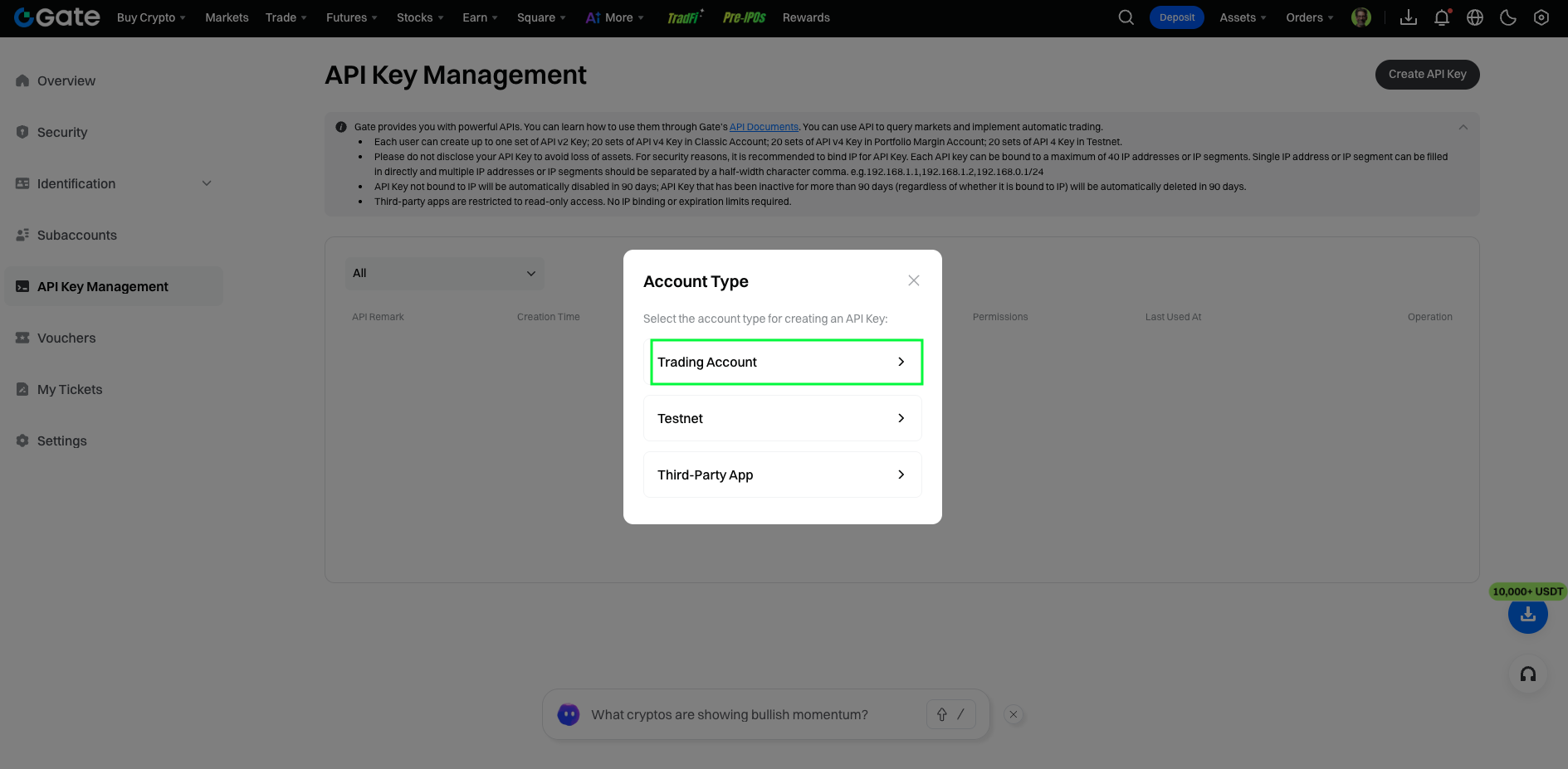
Go to API Management in your Gate account settings and create an APIv4 key.
- Account type: choose Trading account.
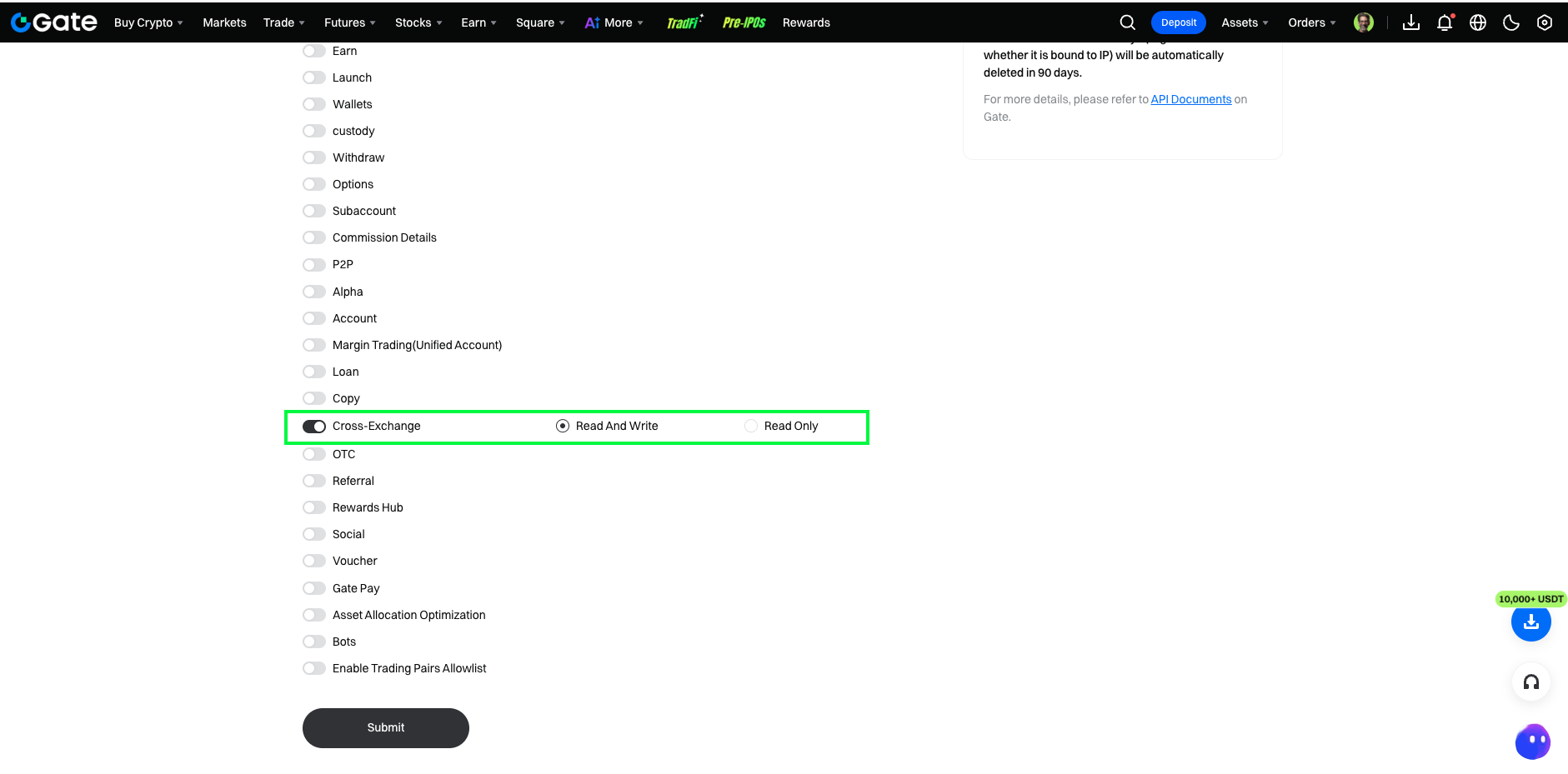
- Permissions: tick only Cross-Exchange, set to Read and Write.
- Withdrawal: leave OFF. A trading bot never needs to withdraw your funds, and with this permission off the app cannot move money off your account at all.
- IP Permissions: choose "Later", unless your machine has a fixed IP — in which case binding the key to it adds extra protection. Home IPs tend to change (e.g. after a router restart), and the key stops working until you update the binding.
Save the API key and API secret key immediately and securely — this is the only time you'll be able to see the secret.